Step-by-Step: Add Stripe Checkout to Your Next.js App for SaaS Monetization
Monetize your SaaS fast! This guide shows you how to integrate Stripe Checkout into your Next.js app with code examples and best practices.
Building a SaaS product is tough. You've poured your heart into the idea, coded late into the night, and now you're ready to launch. But then you hit a wall: payments. Integrating a robust, secure payment system like Stripe can feel daunting, especially when you just want to get your product out there and start making some money. Trust me, I've been there -?spending weeks building features nobody wanted, only to realize I hadn't even figured out how to charge for them.
This isn't just about adding a button; it's about building trust, handling subscriptions, and ensuring your hard work actually pays off. Many indie hackers, myself included, often get stuck here. We've got the tech chops for the core product, but the "business" side, like payment processing, feels like a dark art. But it doesn't have to be.
Today, we're going to demystify Stripe Checkout integration in a Next.js application. We'll go from zero to a fully functional payment flow, handling both one-time payments and subscriptions, with focused work. This isn't just a basic overview; we're diving deep with code examples and best practices, ensuring your payment gateway is robust and ready for prime time.
Why Stripe Checkout?
Before we jump into the code, let's briefly touch on why Stripe Checkout is often the go-to choice for SaaS applications. It's pre-built, hosted by Stripe, and handles all the complexities of PCI compliance, tax calculation, and various payment methods. This means less code for you to write, less security overhead, and a faster path to monetization. As a solo founder, your time is your most valuable asset. Don't reinvent the wheel here.
The Overall Payment Flow: A Bird's Eye View
Let's visualize the journey a user takes from deciding to pay to a successful subscription. Understanding this flow is crucial before we start coding.
Stripe Checkout Payment Flow:
1. User clicks "Buy" -> 2. Next.js API creates Stripe Session -> 3. Redirect to Stripe Checkout
                                                                            -> 6. User redirected to success page -> 5. Your API processes webhook -> 4. Stripe sends webhook (payment complete)
The core steps are: create a Stripe Checkout session on your API route, redirect the user to Stripe, and handle success/cancel with server-side webhooks.
Step 1: Set Up Your Stripe Account and Get API Keys
If you haven't already, sign up for a Stripe account. Once logged in, navigate to the Developers section to get your Publishable key and Secret key.
Important:
- Use "Test Mode" keys for development.
- Keep your Secret key private. Never expose it in client-side code.
Step 2: Install Stripe Library
In your Next.js project, install the Stripe Node.js library:
npm install stripe
# or
yarn add stripe
Step 3: Configure Environment Variables
Create a .env.local file in your project root and add your Stripe keys:
STRIPE_SECRET_KEY=sk_test_YOUR_SECRET_KEY
NEXT_PUBLIC_STRIPE_PUBLISHABLE_KEY=pk_test_YOUR_PUBLISHABLE_KEY
NEXT_PUBLIC_BASE_URL=http://localhost:3000 # Your app's base URL
Remember to add NEXT_PUBLIC_ prefix for client-side accessible variables. For deployment, you'll configure these in your hosting provider (e.g., Vercel).
Step 4: Create a Stripe Product and Price
Before we can create a checkout session, Stripe needs to know what you're selling and how much it costs. Go to your Stripe Dashboard -> Products.
- Add a product: Give it a name (e.g., "Pro Plan", "Premium Access").
- Add a price:
- Choose "Standard pricing".
- Set a price (e.g., $10).
- Choose "Recurring" for subscriptions (e.g., monthly) or "One-time" for single payments.
- Note down the Price ID (looks like
price_xxxxxxxxxxxxxx). This ID is what you'll use in your code.
Step 5: Create the API Route for Checkout Session
Now, let's create a Next.js API route that will interact with Stripe to create a checkout session. This will be a serverless function that runs on your server (or Vercel's edge).
Create a file at pages/api/create-stripe-checkout-session.ts (or .js):
// pages/api/create-stripe-checkout-session.ts
import { NextApiRequest, NextApiResponse } from 'next';
import Stripe from 'stripe';

const stripe = new Stripe(process.env.STRIPE_SECRET_KEY!, {
  apiVersion: '2023-10-16', // Use current API version
});

export default async function handler(
  req: NextApiRequest,
  res: NextApiResponse
) {
  if (req.method !== 'POST') {
    return res.status(405).json({ message: 'Method Not Allowed' });
  }

  const { priceId, quantity = 1, userId } = req.body; // userId for metadata

  try {
    const session = await stripe.checkout.sessions.create({
      payment_method_types: ['card'],
      line_items: [
        {
          price: priceId, // The Price ID from Stripe Dashboard
          quantity: quantity,
        },
      ],
      mode: 'subscription', // or 'payment' for one-time purchases
      success_url: `${process.env.NEXT_PUBLIC_BASE_URL}/success?session_id={CHECKOUT_SESSION_ID}`,
      cancel_url: `${process.env.NEXT_PUBLIC_BASE_URL}/cancel`,
      metadata: {
        userId: userId, // Attach user ID for later use in webhooks
      },
      customer_email: '[email protected]', // Pre-fill email if known
    });

    res.status(200).json({ sessionId: session.id });
  } catch (error: any) {
    console.error('Error creating checkout session:', error);
    res.status(500).json({ error: error.message });
  }
}Explanation:
- We initialize the Stripe client with our secret key.
- The
line_itemsarray specifies what product the user is buying using itspriceId. mode: 'subscription'is crucial for recurring payments. Use'payment'for one-time.success_urlandcancel_urltell Stripe where to redirect the user after payment. We passCHECKOUT_SESSION_IDto the success URL for verification later.metadatais a powerful feature to attach custom data (like your internaluserId) to the Stripe session, which will be available in webhooks.
Step 6: Trigger Checkout from Your Frontend
Now, let's add a button to your Next.js frontend that calls this API route and redirects the user to Stripe.
// components/BuyButton.tsx
'use client'; // For App Router

import { loadStripe } from '@stripe/stripe-js';
import React from 'react';

// Make sure to call `loadStripe` outside of a component-'s render to avoid
// recreating the Stripe object on every render.
const stripePromise = loadStripe(
  process.env.NEXT_PUBLIC_STRIPE_PUBLISHABLE_KEY!
);

interface BuyButtonProps {
  priceId: string;
  userId: string; // Or get from auth context
}

export function BuyButton({ priceId, userId }: BuyButtonProps) {
  const handleClick = async () => {
    const stripe = await stripePromise;

    // Call your API route to create a checkout session
    const response = await fetch('/api/create-stripe-checkout-session', {
      method: 'POST',
      headers: {
        'Content-Type': 'application/json',
      },
      body: JSON.stringify({ priceId, userId }),
    });

    const session = await response.json();

    if (response.ok && stripe) {
      // Redirect to Stripe Checkout
      const result = await stripe.redirectToCheckout({
        sessionId: session.sessionId,
      });

      if (result.error) {
        console.error(result.error.message);
      }
    } else {
      console.error('Failed to create Stripe Checkout session:', session.error);
    }
  };

  return (
    <button
      onClick={handleClick}
      className="px-6 py-3 bg-blue-600 text-white font-semibold rounded-lg shadow-md hover:bg-blue-700 focus:outline-none focus:ring-2 focus:ring-blue-500 focus:ring-offset-2 transition duration-150 ease-in-out"
    >
      Upgrade to Pro
    </button>
  );
}
You can then use this BuyButton component in your pricing page or dashboard:
// pages/pricing.tsx or app/pricing/page.tsx
import { BuyButton } from '../components/BuyButton';

export default function PricingPage() {
  const currentUserId = 'user_123'; // Replace with actual user ID from your auth system

  return (
    <div className="min-h-screen bg-gray-900 text-white flex flex-col items-center justify-center p-4">
      <h1 className="text-4xl font-bold mb-8">Choose Your Plan</h1>
      <div className="grid md:grid-cols-2 gap-8 max-w-4xl">
        {/* Basic Plan */}
        <div className="bg-gray-800 p-8 rounded-lg shadow-xl border border-gray-700">
          <h2 className="text-2xl font-bold mb-4">Basic Plan</h2>
          <p className="text-gray-400 mb-6">Access to core features.</p>
          <p className="text-4xl font-extrabold mb-8">$0/month</p>
          <button className="px-6 py-3 bg-gray-600 text-white font-semibold rounded-lg cursor-not-allowed">
            Current Plan
          </button>
        </div>

        {/* Pro Plan */}
        <div className="bg-gradient-to-br from-purple-800 to-indigo-800 p-8 rounded-lg shadow-xl border border-purple-700">
          <h2 className="text-2xl font-bold mb-4">Pro Plan</h2>
          <p className="text-gray-200 mb-6">Unlock all premium features!</p>
          <p className="text-4xl font-extrabold mb-8">$10/month</p>
          <BuyButton priceId="price_12345" userId={currentUserId} />{' '}
          {/* Replace with your actual price ID */}
        </div>
      </div>
    </div>
  );
}
Step 7: Handle Success and Cancel Pages
Create simple pages for success.tsx and cancel.tsx that users are redirected to.
// pages/success.tsx
import { useEffect, useState } from 'react';
import { useRouter } from 'next/router';
import { CheckCircleIcon } from '@heroicons/react/24/solid';

export default function SuccessPage() {
  const router = useRouter();
  const { session_id } = router.query;
  const [loading, setLoading] = useState(true);
  const [message, setMessage] = useState('Verifying your payment...');

  useEffect(() => {
    if (session_id) {
      // In a real app, you might want to verify the session server-side
      // to update your user's subscription status based on a webhook.
      // For now, we'll just show a success message.
      setMessage('Payment successful! Your subscription is now active.');
      setLoading(false);
    } else if (!router.isReady) {
      // Wait for router to be ready to access query params
      return;
    } else {
      // If no session_id is present, something went wrong or direct access
      setMessage('Something went wrong or invalid access.');
      setLoading(false);
    }
  }, [session_id, router.isReady]);

  return (
    <div className="min-h-screen bg-gray-900 text-white flex flex-col items-center justify-center p-4">
      {loading ? (
        <p className="text-xl">Loading...</p>
      ) : (
        <div className="text-center">
          <CheckCircleIcon className="h-24 w-24 text-green-500 mx-auto mb-6" />
          <h1 className="text-3xl font-bold mb-4">Thank You!</h1>
          <p className="text-lg text-gray-300">{message}</p>
          <p className="mt-8">
            <a href="/dashboard" className="text-blue-400 hover:underline">
              Go to Dashboard
            </a>
          </p>
        </div>
      )}
    </div>
  );
}
// pages/cancel.tsx
import { XCircleIcon } from '@heroicons/react/24/solid';
export default function CancelPage() {
return (
<div className="min-h-screen bg-gray-900 text-white flex flex-col items-center justify-center p-4">
<div className="text-center">
<XCircleIcon className="h-24 w-24 text-red-500 mx-auto mb-6" />
<h1 className="text-3xl font-bold mb-4">Payment Canceled</h1>
<p className="text-lg text-gray-300">
Your payment was not completed. Please try again or contact support if
you have any questions.
</p>
<p className="mt-8">
<a href="/pricing" className="text-blue-400 hover:underline">
Back to Pricing
</a>
</p>
</div>
</div>
);
}Step 8: Implement Stripe Webhooks for Server-Side Updates
This is the most critical step for reliable SaaS monetization. Redirecting from success_url is client-side and can be unreliable. Always rely on webhooks to update your database and activate user subscriptions.
As the nextjs/saas-starter project on GitHub emphasizes, you need to "create a new webhook for your production environment. Set the endpoint URL to your production API route... Select the events you want to listen for (e.g., checkout.session.completed, customer.subscription.updated)."
Stripe Webhook Flow:
Stripe Event -> Webhook POST to API -> Verify Signature -> Update Database -> Send Confirmation Email8.1 Create a Webhook Endpoint
Create a file at pages/api/stripe-webhook.ts:
// pages/api/stripe-webhook.ts
import { NextApiRequest, NextApiResponse } from 'next';
import Stripe from 'stripe';
import { buffer } from 'micro'; // Required for raw body parsing

// Initialize Stripe with your secret key
const stripe = new Stripe(process.env.STRIPE_SECRET_KEY!, {
  apiVersion: '2023-10-16',
});

// Stripe requires the raw body for webhook signature verification.
// We disable Next.js's body parsing for this route.
export const config = {
  api: {
    bodyParser: false,
  },
};

export default async function handler(
  req: NextApiRequest,
  res: NextApiResponse
) {
  if (req.method !== 'POST') {
    return res.status(405).send('Method Not Allowed');
  }

  const buf = await buffer(req);
  const signature = req.headers['stripe-signature'];

  let event: Stripe.Event;

  try {
    // Verify the event with your webhook secret
    event = stripe.webhooks.constructEvent(
      buf,
      signature!,
      process.env.STRIPE_WEBHOOK_SECRET! // Get this from Stripe Dashboard -> Webhooks
    );
  } catch (err: any) {
    console.error(`Webhook Error: ${err.message}`);
    return res.status(400).send(`Webhook Error: ${err.message}`);
  }

  // Handle the event
  switch (event.type) {
    case 'checkout.session.completed':
      const session = event.data.object as Stripe.Checkout.Session;
      console.log('Checkout Session Completed:', session.id);
      // Retrieve customer and subscription details
      const customerId = session.customer as string;
      const subscriptionId = session.subscription as string;
      const userId = session.metadata?.userId; // Our custom metadata

      // IMPORTANT: Update your database here!
      // Example: Mark user as 'pro' or create a subscription record
      console.log(`User ${userId} (Stripe Customer: ${customerId}) subscribed with Session: ${session.id}, Subscription: ${subscriptionId}`);
      // await db.updateUserSubscription(userId, { customerId, subscriptionId, status: 'active' });

      // You might also want to send a welcome email here
      break;
    case 'customer.subscription.updated':
      const subscription = event.data.object as Stripe.Subscription;
      console.log('Subscription Updated:', subscription.id, 'Status:', subscription.status);
      // Handle subscription changes (e.g., cancelled, renewed)
      // await db.updateSubscriptionStatus(subscription.id, subscription.status);
      break;
    case 'invoice.payment_succeeded':
      const invoice = event.data.object as Stripe.Invoice;
      console.log('Invoice Payment Succeeded:', invoice.id);
      // Optionally, record successful invoice payments
      break;
    // ... handle other event types
    default:
      console.warn(`Unhandled event type ${event.type}`);
  }

  // Return a 200 response to acknowledge receipt of the event
  res.status(200).json({ received: true });
}
8.2 Get Your Webhook Secret
Go to your Stripe Dashboard -> Developers -> Webhooks.
- Click "Add endpoint".
- Set the Endpoint URL to
https://YOUR_APP_DOMAIN/api/stripe-webhook. For local development, you'll need a tool likengrokor the Stripe CLI to expose your local server to the internet.- Using Stripe CLI:
stripe listen --forward-to localhost:3000/api/stripe-webhook
- Using Stripe CLI:
- Select the events you want to listen to. At minimum,
checkout.session.completedandcustomer.subscription.updatedare essential. - After creating, reveal the Signing secret (looks like
whsec_xxxxxxxxxxxxxx). Add this to your.env.localasSTRIPE_WEBHOOK_SECRET.
Step 9: Deploying to Vercel (or similar)
Once your code is ready, deploying to Vercel is straightforward:
- Push your code to a GitHub repository.
- Connect your repository to Vercel.
- During deployment, set your environment variables (
STRIPE_SECRET_KEY,NEXT_PUBLIC_STRIPE_PUBLISHABLE_KEY,STRIPE_WEBHOOK_SECRET,NEXT_PUBLIC_BASE_URL) in Vercel's project settings. RememberNEXT_PUBLIC_BASE_URLshould be your production domain (e.g.,https://your-saas.com).
Local vs Production Configuration:
| Setting | Local Development | Production |
|---|---|---|
| Secret Key | sk_test_... | sk_live_... |
| Publishable Key | pk_test_... | pk_live_... |
| Webhook URL | localhost:3000/api/stripe-webhook (via ngrok/CLI) | https://your-app.com/api/stripe-webhook |
| Environment | .env.local | Vercel Env Vars |
Testing Your Setup
- Local Testing: Use
npm run devand then use the Stripe CLI:stripe listen --forward-to localhost:3000/api/stripe-webhook. Trigger the checkout, complete a test payment on Stripe, and observe your webhook console output. - Dashboard Monitoring: After a test payment, check your Stripe Dashboard -> Developers -> Webhooks. You should see successful events being sent and received by your endpoint. If not, the logs will provide clues.
This chart is illustrative only. Use it as a reminder to monitor delivery health over time and investigate any dips quickly.
Notice the dip? This could indicate a misconfigured webhook, a sudden surge in traffic that overwhelms the endpoint, or an issue with the server-side processing logic. Continuous monitoring of your webhook delivery in the Stripe Dashboard is crucial for maintaining a healthy payment system.
Advanced Considerations
- Customer Portal: Stripe offers a hosted Customer Portal for users to manage their subscriptions, update payment methods, and view billing history. Integrate this to offload customer support.
- Taxes: Stripe Tax can automate sales tax, VAT, and GST calculations.
- Coupons/Promotions: Implement these using Stripe's coupon and promotion code features.
- Security: Always verify webhooks signatures. Never trust data directly from the client-side.
- Error Handling: Implement robust error logging and user feedback for both frontend and backend.
Conclusion: Your SaaS is Ready to Make Money
You've just set up a robust, scalable payment system for your Next.js SaaS application. This isn't just about integrating a payment gateway; it's about building the foundation for a sustainable business. By leveraging Stripe Checkout and webhooks, you've optimized for speed, security, and developer efficiency.
Remember, the goal of an indie hacker is to build and ship, not to get bogged down in endless configuration. Tools like Stripe make that possible. If you want a lightweight idea-validation checklist, I keep one at SaaS Gaps.
Now go forth and monetize! Your users (and your bank account) will thank you.
This diagram summarizes the high-level path from idea validation to monetization.
Sources
- Stripe Checkout Documentation
- Next.js SaaS Starter on GitHub
- MTechZilla: Stripe Checkout with Next.js: Complete Integration Guide
Author

Categories
More Posts
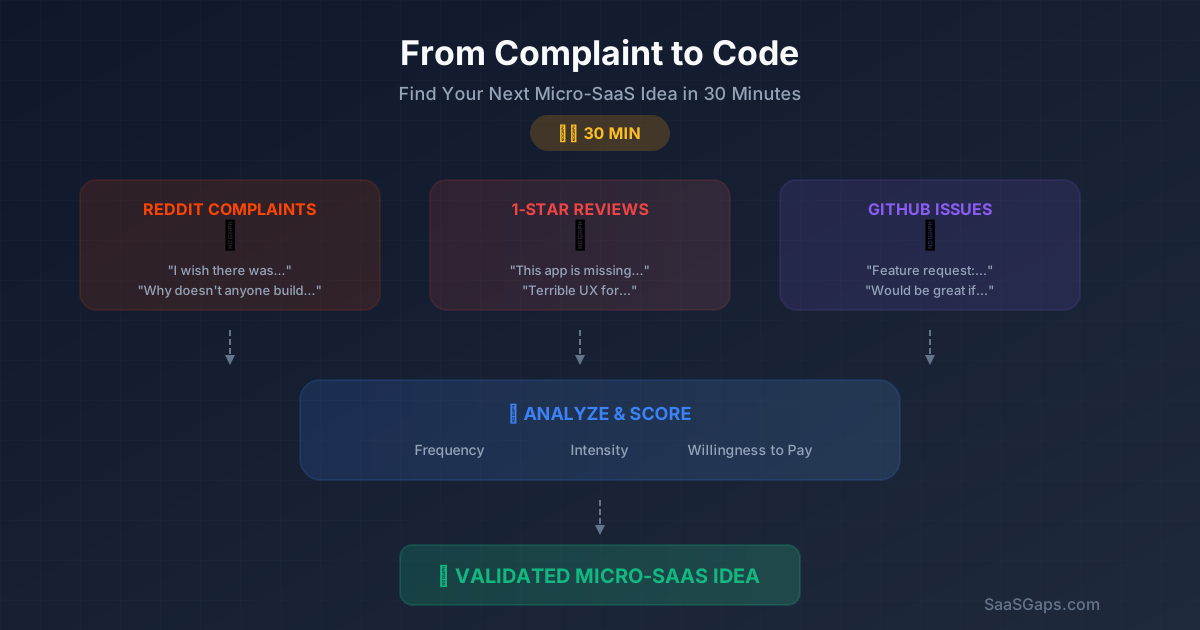
From Complaint to Code: How to Find Your Next Micro-SaaS Idea in 30 Minutes
Stop brainstorming in a vacuum. Learn the practical 30-minute framework for mining Reddit complaints, 1-star app reviews, and GitHub issues to discover validated micro-SaaS ideas.

How to Extract Specific Frames from Videos Using Natural Language Queries
Revolutionize video analysis: learn to extract precise frames from videos using natural language with CLIP and FFmpeg. A step-by-step guide for developers.
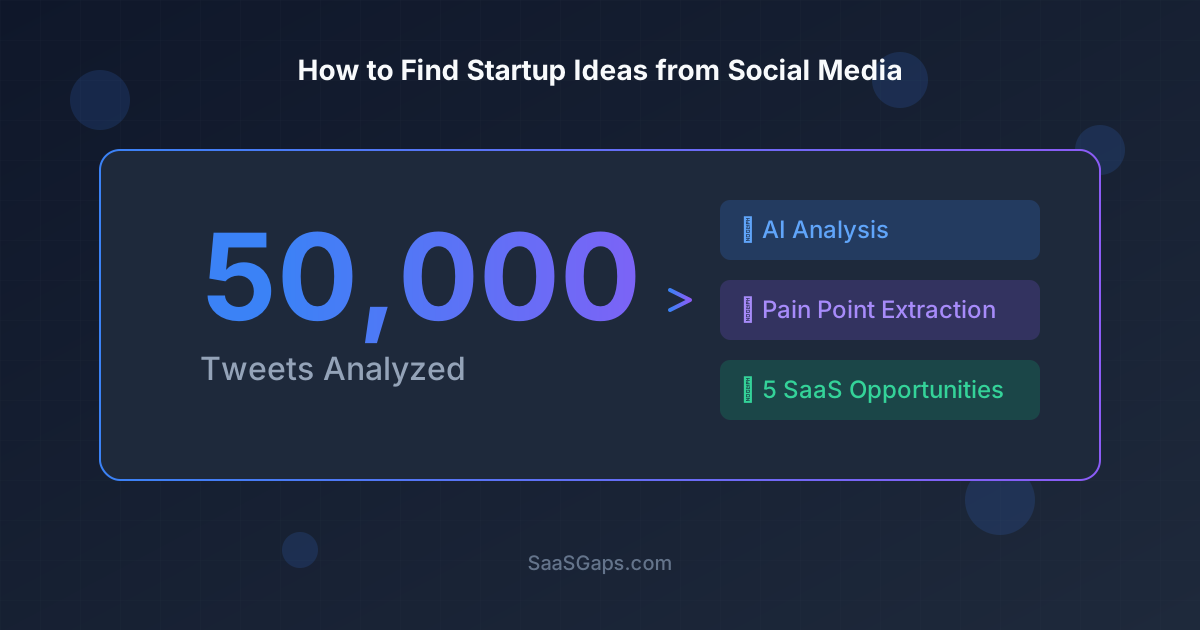
How I Monitored 50,000 Tweets and Discovered 5 SaaS Opportunities
A deep dive into using AI to analyze social media complaints and uncover validated micro-SaaS ideas that real users are willing to pay for.
Newsletter
Join the community
Subscribe to our newsletter for the latest news and updates